
Appearance
filesystem
FHS, Filesystem Hierarchy Standard 结构原则
文件系统层级规范。
根据目录存放文件类型划分目录类型:
- static 静态:内容不变。
- dynamic 动态:程序运行中文件内容变动。
- persistent 持久:开机后不会变动,系统环境变量。
- runtime:操作系统或程序运行时内存数据映射的文件。
| 目录 | 存放内容 |
|---|---|
| /bin/sbin | /bin 普通用户指令/sbin 系统管理员指令目前为符号连接分别指向 /usr/bin、/usr/sbin |
| /boot | 与开关机相关内容,包括 kernal、开关机程序与相关配置文件。 |
| /dev | device 简写,放置设备文件。 |
| /etc | 系统配置文件 |
| /home/root | 家目录 |
| /lib/lib64 | 系统函数库与核心函数库/lib 中包含核心驱动程序/lib64 存放64位函数库目前为符号连接分别指向 /usr/lib、/usr/lib64 |
| /proc | 内存中的数据存放于该目录下,其中某些核心参数可修改。 |
| /sys | 于 /proc 相似,硬件设备相关参数。 |
| /usr | unix software resource 简写,存放库文件和程序。 |
| /var | 变动文件,日志、配置文件、程序文件 |
| /tmp | 暂存文件 |
| /media | 临时挂载设备文件。如,USB |
| /mnt | 手动挂载目录 |
| /opt | 三方厂商程序 |
| /run | 重要的临时文件系统,用于存储系统启动以来的各种运行时数据。它的内容存储在内存中,访问速度快,但在系统重启时会被清除。 |
| /srv | service,各类服务存放数据。 |
文件类型
Filesystem 中的 inode 元数据标识文件类型。
| 序号 | 类型 | 含义 |
|---|---|---|
| 1 | 普通文件(Regular File) | 文本文件、二进制可执行文件、图片、音频、视频 |
| 2 | 目录(Directory) | |
| 3 | 符号连接(Symbolic Link) | 软链接,指向一个文件。ln -s <src> <dest> |
| 4 | 硬链接(Hard Link) | 指向同一 inode 的多个文件名。ln <src> <dest> |
| 5 | 字符设备文件(Character Device) | 字符流访问设备(终端、键盘) |
| 6 | 块设备文件(Block Device) | 数据库访问设备(磁盘) |
| 7 | 命名管道(Named Pipe/FIFO) | 进程间通讯先入先出队列 |
| 8 | 套接字(Socket) | 进程间网络通信接口 |
路径表达
| 目录 | 含义 |
|---|---|
| / | 根目录 |
| ~ | 家目录 |
| . | 当前工作目录 |
| .. | 当前工作目录的上一层目录 |
| - | 前一个工作目录 |
绝对路径
由根目录开始表达一的路径信息,唯一且不重复。
相对路径
由工作目录(work directory)开始表达的路径信息。
元字符
| 符号 | 含义 |
|---|---|
* | 代表零个或无数个任意字符 |
? | 代表一个任意字符 |
[] | 代表中括号中包含任意一个字符 |
[n-m] | 数字顺序简写,代表其中一个数字。 |
[^] | 代表中括号中不包含任意一个字符 |
基础操作
sh
# list directory contents
$ ls
$ ls -l
$ ls -lh
$ ls -la

# change file timestamps
$ touch

# determine file type
$ file

# change dierctory
$ cd

# print work directory
$ pwd

# copy files and directories
$ cp
# 复制前询问
$ alias cp='cp -i'
# 递归复制,更新修改时间和属主及属群
$ cp -R <src> <dest>
# 递归复制,保留修改时间和属主及属群
$ cp -a <src> <dest>

# make directories
$ mkdir

# display file or filesystem status
$ stat

# remove empty directories
$ rmdir

# remove files or directories
$ rm
# 删除前询问
$ alias rm='rm -i'

# move or rename files
$ mv
# 执行前询问
$ alias mv='mv -i'
文件查找
sh
# search for files in a directory hierarchy
$ find

# --- 根据名称(支持通配符)---
$ find <path> -name <string>

# 根据类型(TYPE)
# f: 普通文件
# d: 目录
# l: 符号连接
# b: 块设备
# c: 字符设备
# p: 管道文件
# s: 套接字

$ find <path> -type <TYPE>

# --- 根据时间 ---
# modify time
$ find <path> -mtime <±n>
$ find <path> -mmin <±n>
# access time
$ find <path> -atime <±n>
$ find <path> -amin <±n>
# create time
$ find <path> -ctime <±n>
$ find <path> -cmin <±n>

# 24h  以内修改过的
$ find <path> -mtime 0
# 7day 以内修改过的
$ find <path> -mtime -7
# 30day 之前修改过的
$ find <path> -mtime +30
# 10min 以内修改过的
$ find <path> -mmin -10
# 60min 之前修改过的
$ find <path> -mmin +60

# --- 根据大小 ---
$ find <path> -size <SIZE>
# SIZE:
# 10k: 等于 10 KB
# -10M: 小于 10 MB
# +1G: 大于 1 GB

# --- 根据权限 ---
$ find <path> -perm <PERMMISION>
# PERMISSION
# 644: 等于该权限
# -644: 小于该权限
# +644: 大于该权限
# /u=rwx: 属主具有 rwx 权限
# /g=r: 属组具有 r 权限
# /o=w
# 任何人可执行
$ find <path> -perm /111
$ find <path> -perm /u=x

# --- 根据属主 ---
$ find <path> -user <user>
$ find <path> -uid <id>

# --- 根据属组 ---
$ find <path> -group <group>
$ find <path> -gid <id>

# --- 无属主 ---
$ find <path> -nouser

# --- 无属组 ---
$ find <path> -nogroup

# --- mode bit ---


# --- 逻辑组合 ---
# AND
$ find <path> A B

# OR
$ find <path> A -o B

# NOT
$ find <path> ! A

# --- 执行命令 ---
# {} 代表找到的文件
# \; 表示命令结束
$ find <path> A -exec <cmd> \;

$ find <path> -type s -exec ls -l

# --- 交互模式 ——-
$ find <path> -ok <cmd> {} \;
$ find <path> -ok rm {} \;
文件内容
sh
# concatenate files and print on the standard output
$ cat
# output the first part of files
$ head
# output the last part of files
$ tail
# 查看日志输出
$ tail -n 200 -f <path/file.log>

# print netline, word, and byte counts for each file
$ wc

# export or omit repeated lines
$ uniq

# read from standard input and write to standard output and files
$ tee

# sort lines of text files
$ sort

# split a file into pieces
$ split

# --- 检索 ---
# file perusal filter for crt viewing
$ more
# opposite of more
$ less

# 操作
# [enter]: 向下移动一行
# [方向键上下]: 向上/下移动一行
# [page down]: 翻页,向下
# [page up]: 翻页,向上
# [g]: 移动到首行
# [G]: 移动到末行
# [q]: 退出
# [/key]: 检索内容,从当前行到末行
# [n]: 检索内容,向下跳转检索到的位置
# [N]: 检索内容,向上跳转检索到的位置
# [?key]: 检索内容,从但钱行到首行,[n]、[N] 操作与 [/key] 反向。
归档
通过建议使用 gzip 执行速度快,时间宽裕下使用 xz 获取更高压缩率。
建议归档的目录:
- /etc
- /home, /root
- /var/spool/mail
- /var/spool/at, /var/spool/cron
- /opt
- /usr/local
- /var/lib (服务数据备份)
sh
# an archiving utility
# 提供 gzip,bzip2,xz 算法函数
$ tar

# gzip,打包指定内容
$ tar -cv -z -f <archive.tar.gz> <file...>
# gzip, 解压缩到,当前目录
$ tar -xv -z -f <archive.tar.gz>
# gzip, 解压缩到,指定目录
$ tar -xv -z -f <archive.tar.gz> -C <path>
# gzip,查看包内文件
$ tar -tv -z -f <archive.tar.gz> | less

# bzip2,打包指定内容
$ tar -cv -j -f <archive.tar.bz> <file...>
# bzip2, 解压缩到,当前目录
$ tar -xv -j -f <archive.tar.bz>
# bzip2, 解压缩到,指定目录
$ tar -xv -j -f <archive.tar.bz> -C <path>
# bzip2,查看包内文件
$ tar -tv -j -f <archive.tar.bz> | less

# xz,打包指定内容
$ tar -cv -J -f <archive.tar.xz> <file...>
# gzip, 解压缩到,当前目录
$ tar -xv -J -f <archive.tar.xz>
# gzip, 解压缩到,指定目录
$ tar -xv -J -f <archive.tar.xz> -C <path>
# gzip,查看包内文件
$ tar -tv -J -f <archive.tar.xz> | less
磁盘
分区表
分区表是存储在磁盘起始位置的数据结构,用于定义磁盘上分区的布局、大小、位置。
MSDOS/(MBR, Master Boot Record)
plain
# 典型MBR分区方案:
/dev/sda1 - 主分区1 (Windows系统)
/dev/sda2 - 主分区2 (Linux根分区)
/dev/sda3 - 扩展分区
  /dev/sda5 - 逻辑分区1 (Linux home)
  /dev/sda6 - 逻辑分区2 (Linux swap)
/dev/sda4 - 主分区3 (数据分区)
GPT, GUID Partition Table
LBA, Logical Block Address 逻辑区块地址,预设 512Bytes 每个 LBA 可以记录 4 笔记录,最大记录 (33 - 2 + 1) * 4 = 128,每笔记录属于 primary 分割记录,可以直接拿来进行格式化应用。
plain
LBA 0:     保护性MBR(兼容旧系统)
LBA 1:     主GPT头(Primary GPT Header)
LBA 2-33:  主分区表(128个分区条目,每个128字节)
LBA 34:    分区表备份
ext4 文件系统结构
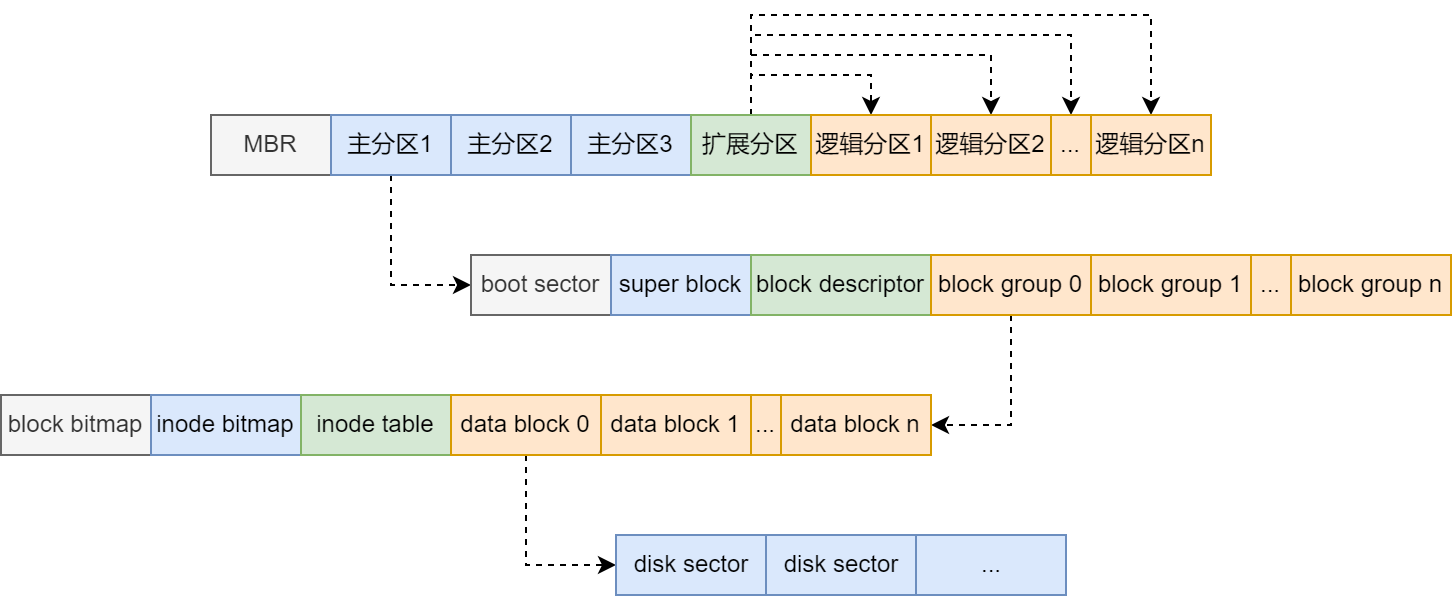
- boot sector:引导分区
- super block:
- 记录整个分区信息
- inode、block, 大小、已使用数量、未使用数量
- 文件系统挂载时间、最后一次写入数据、校验磁盘的时间
- 文件系统挂载时,者部分信息会加载到内存常驻
- block descriptor:
- block group:
- block descriptor:每个块组都与一个描述块关联(https://docs.kernel.org/filesystems/ext4/group_descr.html)
- block bitmap:记录 data block 使用情况
- inode bitmap:记录 inode 使用情况
- inode table:inode 数据区
- data block:与磁盘扇区对齐,可选大小(1K,2K,4K)
- block descriptor:每个块组都与一个描述块关联(https://docs.kernel.org/filesystems/ext4/group_descr.html)
- disk sector:磁盘扇区,最小物理单位 512 Bytes。
inode table
每个文件都与一个 inode 结构相关联,每个 inode 有固定编号和单独存储空间,inode 大小 128/256B。
inode 元数据
- uid. gid
- 权限:read/write/execute
- 连接数
- 容量
- 时间戳:create time、modify time、access time
- flag:SUID, SGID, SBIT
- pointer:指向真实内容
data block
数据存储区,每个 inode 会占有一或多个 block 根据数据量需求。
sh
# report filesystem space usage
$ df

# list inode information instead of block usage
# 磁盘用量——inode 汇总
df -hi
Filesystem     Inodes IUsed IFree IUse% Mounted on
udev             976K   442  975K    1% /dev
tmpfs            982K   817  981K    1% /run
/dev/nvme0n1p4    15M  313K   15M    3% /
tmpfs            982K     1  982K    1% /dev/shm
tmpfs            982K     4  982K    1% /run/lock
/dev/nvme0n1p2    62K   343   61K    1% /boot
/dev/nvme0n1p1      0     0     0     - /boot/efi

# 磁盘用量——block 汇总
$ df -h
Filesystem      Size  Used Avail Use% Mounted on
udev            3.9G     0  3.9G   0% /dev
tmpfs           786M  1.2M  784M   1% /run
/dev/nvme0n1p4  231G   42G  178G  19% /
tmpfs           3.9G     0  3.9G   0% /dev/shm
tmpfs           5.0M     0  5.0M   0% /run/lock
/dev/nvme0n1p2  944M   62M  817M   8% /boot
/dev/nvme0n1p1  285M  5.9M  279M   3% /boot/efi
软/硬连接
- Symbol File/Soft Link;
ln -s <orig> <targ> - Regular File/Hard Link;
ln <orig> <targ>
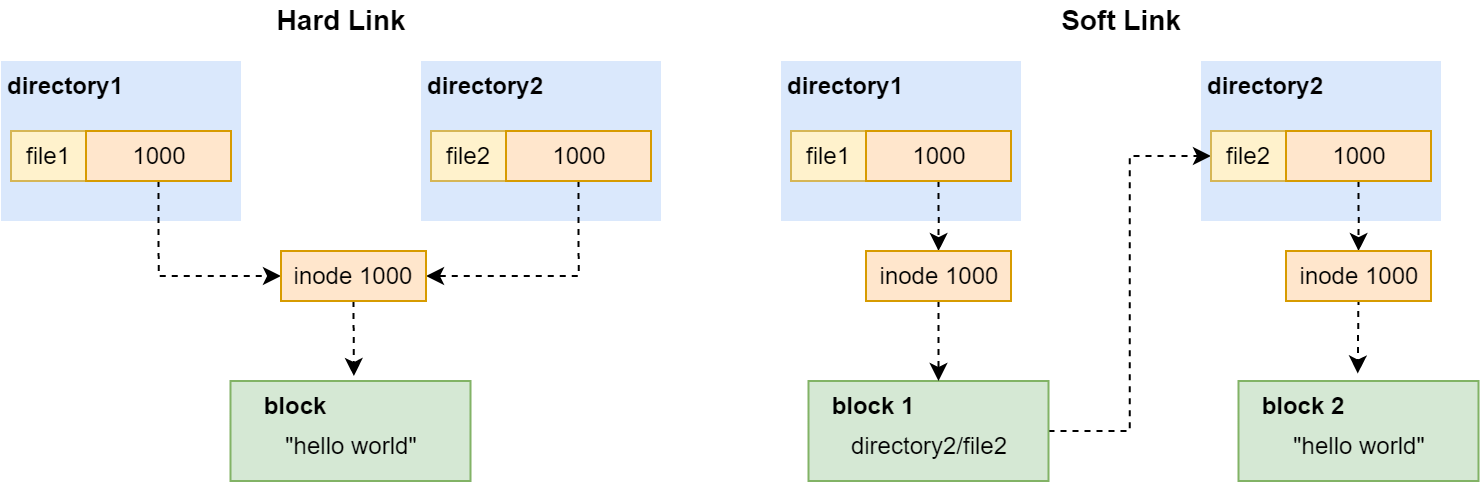
sh
# print the index number of each file
$ ls -li <path>

# make links between files
$ ln
# create hard link by default
$ ln <orig> <targ>
# make symbolic links instead of hard links
$ ln -s <orig> <targ>

$ ln /etc/hosts ./hosts.hl
$ ln -s /etc/hosts ./hosts.sl
$ ls -li /etc/hosts .
13108787 -rw-r--r--. 2 root root  113 Jan  6 15:08 /etc/hosts
13108787 -rw-r--r--. 2 root root 113 Jan  6 15:08 hosts.hl
 3539083 lrwxrwxrwx. 1 x    x     10 Jan  9 19:11 host.sl -> /etc/hosts
文件系统的创建流程
- 分割
- 获取块设备文件名称
- 使用磁盘管理工具进行分割
- 格式化/构建文件系统
- 获取分割的块设备名称
- 使用构建文件系统工具进行选择文件系统类型进行格式化
- 挂载
- 创建挂载点/创建空目录
- 将完成文件系统构建的块设备挂载到挂载点
- 写入
/etc/fstab
/etc/fstab 配置文件
- file system:可以填写,块设备路径、UUID、LABEL
- mount point:挂载点
- type:文件系统类型(xfs,ext4,vfat,reiserfs,nfs),需要手动填写。
- options:可默认为 defaults
| option | 说明 |
|---|---|
| async/sync | 预设 async,文件修改先保存于内存当中,再写入磁盘。 |
| audo/noauto | mount -a 指令,验证 fstab 配置能不被自动挂载 |
| rw/ro | 读写/只读,ro 选项文件系统只读,权限 w 也被限制。 |
| exec/noexec | 可执行/不可执行,noexec 与 ro 相似,限制后 权限 x 也被限制。 |
| user/nouser | 普通用户是否允许挂载,预设 nouser。 |
| suid/nosuid | 是否允许使用SUID,预设 suid,允许。 |
| defaults | 等同于 rw,suid,dev,exec,auto,nouser,async,通常使用 defaults 即可! |
- dump:能否
dump指令备份。xfs 则不用考虑填写 0(不备份)即可。 - pass:是否以
fsck校验磁盘。早期开机流程中,会校验本机文件系统是否完整,这一过程通过fsck完成的。如今 xfs 会自动机型不需要额外验证!所以填写 0 即可。
sh
# list block devices
$ lsblk

# locate/print block device attributes
$ blkid

# information the os of partition table changes
$ partprobe
# paint a summary of contents
$ partprobe -s
/dev/nvme0n1: gpt partitions 1 2 3 4

$ cat /etc/fstab
# <file system> <mount point>   <type>  <options>       <dump>  <pass>
# / was on /dev/nvme0n1p4 during installation
UUID=b845ef4b-c887-4a26-8ed3-4730c334bbda /               ext4    errors=remount-ro 0       1
# /boot was on /dev/nvme0n1p2 during installation
UUID=32b0870c-87cf-4f90-9cf3-74e6f790379c /boot           ext4    defaults        0       2
# /boot/efi was on /dev/nvme0n1p1 during installation
UUID=5126-379C  /boot/efi       vfat    umask=0077      0       1
# swap was on /dev/nvme0n1p3 during installation
UUID=c653b507-6f83-49d2-bd04-bf6f39b5fc2e none            swap    sw              0       0


# start/stop swapping to file/device
$ swapon
$ swapon -s
Filename                                Type            Size            Used            Priority
/dev/nvme0n1p3                          partition       1999868         0               -2

# manipulate disk partition table(目前 fdisk 也支持 gpt)
$ fdisk

# Partition Table
 gpt: Device Start End Sectors Size Type Type-UUID Attrs Name UUID
 dos: Device Start End Sectors Cylinders Size Type Id Attrs Boot End-C/H/S Start-C/H/S
 bsd: Slice Start End Sectors Cylinders Size Type Bsize Cpg Fsize
 sgi: Device Start End Sectors Cylinders Size Type Id Attrs
 sun: Device Start End Sectors Cylinders Size Type Id Flags

# Interactive GUID partition table (GPT) manipulator
$ gdisk

# 清除 superblock 内容, 写入 10M 覆盖superblock区域
$ dd if=/dev/null of=/dev/sda bs=1M count=1

# 备份MBR
$ dd if=/dev/sda of=mbr_backup.bin bs=512 count=1

# 恢复MBR(仅分区表)
$ dd if=mbr_backup.bin of=/dev/sda bs=512 count=1

# 仅恢复引导代码(前446字节)
$ dd if=mbr_backup.bin of=/dev/sda bs=446 count=1


$ fdisk /dev/sdb

Command (m for help): n
Partition type
p   primary (0 primary, 0 extended, 4 free)
# e   extended (container for logical partitions)
Select (default p): p
Partition number (1-4, default 1):
First sector (2048-1048575999, default 2048):
Last sector, +/-sectors or +/-size{K,M,G,T,P} (2048-1048575999, default 1048575999):

Created a new partition 1 of type 'Linux' and of size 500 GiB.

Command (m for help): t
Selected partition 1
Hex code (type L to list all codes): 8e
Changed type of partition 'Linux' to 'Linux LVM'.

Command (m for help): p
Disk /dev/sdb: 500 GiB, 536870912000 bytes, 1048576000 sectors
Disk model: QEMU HARDDISK
Units: sectors of 1 * 512 = 512 bytes
Sector size (logical/physical): 512 bytes / 512 bytes
I/O size (minimum/optimal): 512 bytes / 512 bytes
Disklabel type: dos
Disk identifier: 0xf334c1db

Device     Boot Start        End    Sectors  Size Id Type
/dev/sdb1        2048 1048575999 1048573952  500G 8e Linux LVM

Command (m for help): w
The partition table has been altered.
Calling ioctl() to re-read partition table.
Syncing disks.

$ sudo pvcreate /dev/sdb1
$ sudo vgcreate vg-att /dev/sdb1
$ sudo lvcreate -L 499.9G -n lv-upload vg-att

$ pvdisplay
--- Physical volume ---
PV Name               /dev/sdb1
VG Name               vg-att
PV Size               <500.00 GiB / not usable 3.00 MiB
Allocatable           yes
PE Size               4.00 MiB
Total PE              127999
Free PE               5
Allocated PE          127994
PV UUID               VX5xRF-Ch1H-5r90-OYup-dFXa-s18D-ONDh5P

$ vgdisplay
--- Volume group ---
VG Name               vg-att
System ID
Format                lvm2
Metadata Areas        1
Metadata Sequence No  3
VG Access             read/write
VG Status             resizable
MAX LV                0
Cur LV                1
Open LV               1
Max PV                0
Cur PV                1
Act PV                1
VG Size               <500.00 GiB
PE Size               4.00 MiB
Total PE              127999
Alloc PE / Size       127994 / <499.98 GiB
Free  PE / Size       5 / 20.00 MiB
VG UUID               Cx5mv7-OHpf-Zu1d-8vNA-QSE4-Z2G7-33E9Gk

$ lvdisplay
--- Logical volume ---
LV Path                /dev/vg-att/lv-upload
LV Name                lv-upload
VG Name                vg-att
LV UUID                eJearD-JaDo-fBD0-UeA6-5xgq-JpHn-G00sM5
LV Write Access        read/write
LV Creation host, time ff1ccmjmpl6bqg0, 2024-11-07 15:57:21 +0800
LV Status              available
open                 1
LV Size                <499.98 GiB
Current LE             127994
Segments               1
Allocation             inherit
Read ahead sectors     auto
- currently set to     256
Block device           254:0

$ mkfs.ext4 /dev/vg-att/lv-upload

mke2fs 1.44.5 (15-Dec-2018)
Discarding device blocks: done
Creating filesystem with 131065856 4k blocks and 32768000 inodes
Filesystem UUID: 22a86f97-0a42-42c6-b6bf-599a570fe140
Superblock backups stored on blocks:
32768, 98304, 163840, 229376, 294912, 819200, 884736, 1605632, 2654208,
4096000, 7962624, 11239424, 20480000, 23887872, 71663616, 78675968,
102400000

Allocating group tables: done
Writing inode tables: done
Creating journal (262144 blocks): done
Writing superblocks and filesystem accounting information: done

$ mount /dev/vg-att/lv-upload /data/att/up
$ df -Th
/dev/mapper/vg--att-lv--upload ext4      492G  2.5G  464G   1% /data/att/up

$ sudo du -sh
$ sudo fdisk -l

# 扩容
$ umount /data/att/up
$ lvextend -L +1G /dev/vg-att/lv-upload

# 检查磁盘错误(锟:可以不用。待试验)
$ e2fsck -f /dev/vg-att/lv-upload
# 更新文件系统
$ resize2fs /dev/vg-att/lv-upload

$ mount /dev/vg-att/lv-upload /data/att/up

# /etc/fstab
/dev/sda1: UUID="d5ab1a65-21ce-43d9-863d-a41fc4f43140" BLOCK_SIZE="4096" TYPE="ext4" PARTUUID="fe2f0e85-9369-394a-bf0c-a822db7581e2"
救援 /etc/fstab
sh
# query the systemd journal
$ journalctl -xb
# [G] 按键接触限制,可查看之前内容

# 查看日志内容,定位问题。
# 可对可疑行注释,重启再查询日志验证。